Creating a PoC Account
Categories:
This guide walks you through creating a Proof-of-Concept (PoC) account in Virtalus Cloud. It’s designed to be easy to follow, with clear step-by-step screenshots.
Procedure
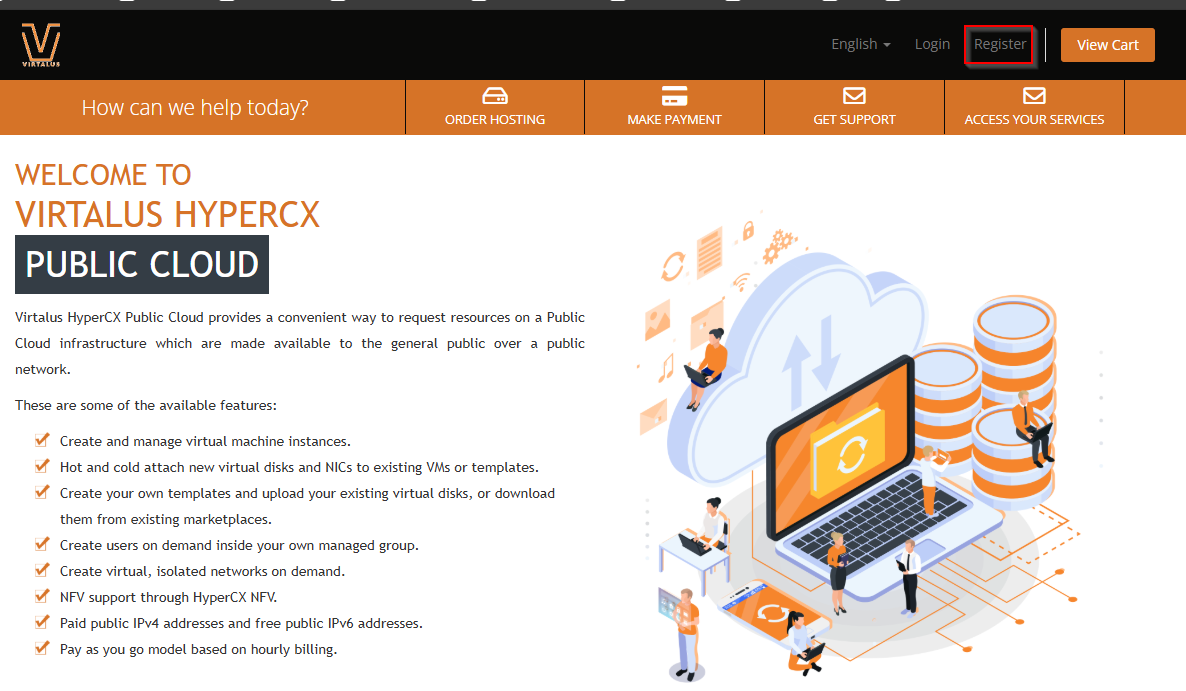
Open the Virtalus User Portal and click “Register”.
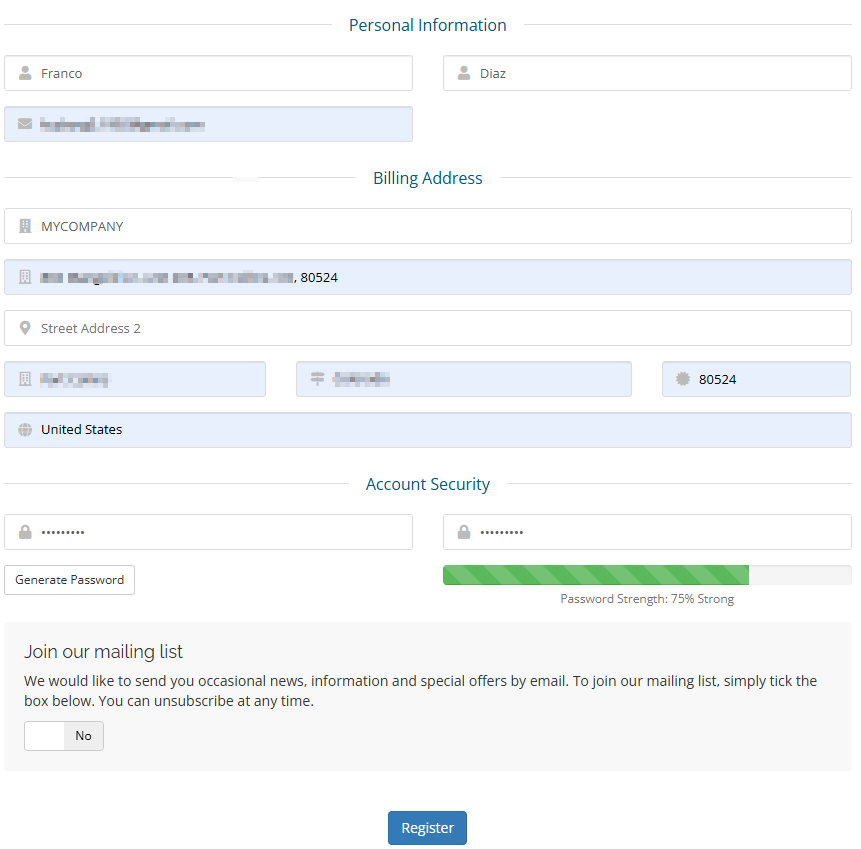
Enter your account details and a valid email address.
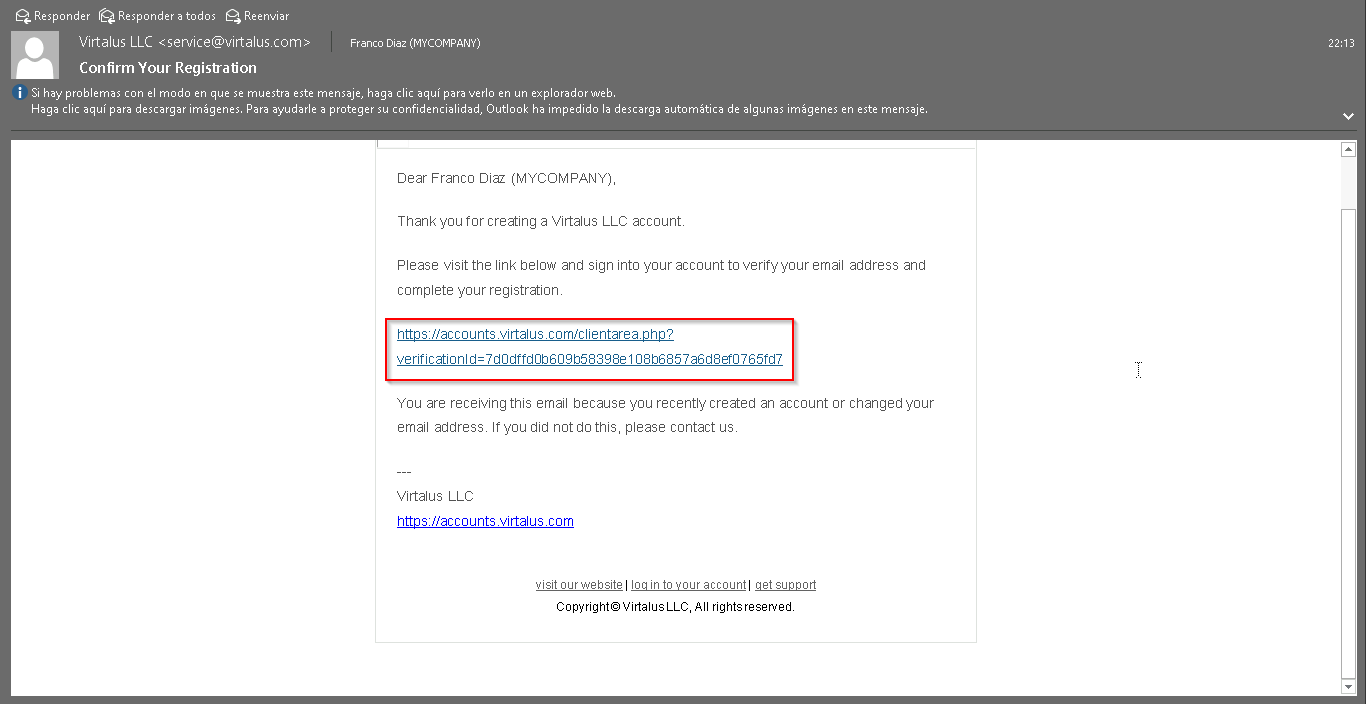
Check your inbox and click the verification link to activate your account.
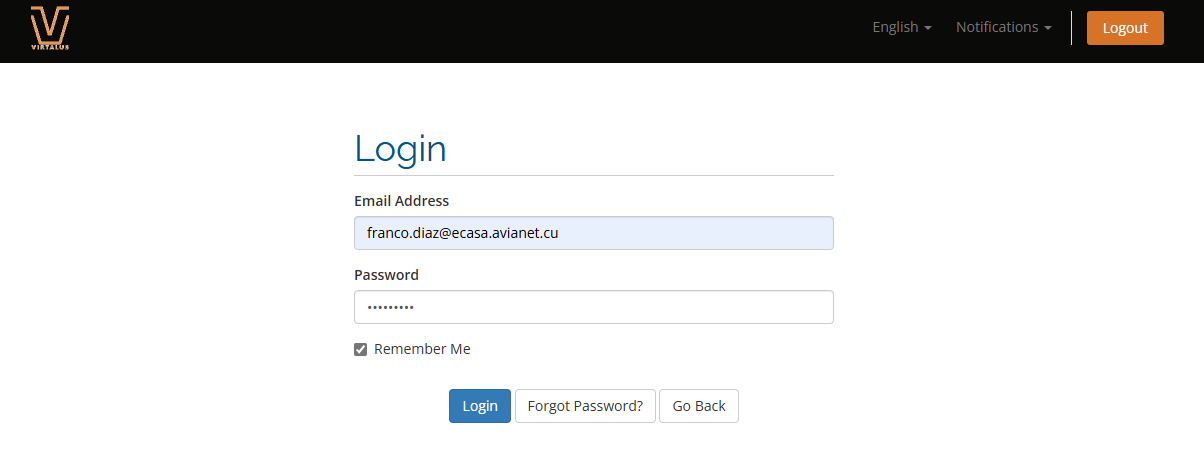
You’ll be redirected to the Virtalus User Portal sign-in page:
You’ll land on your account’s main dashboard in the Virtalus User Portal:
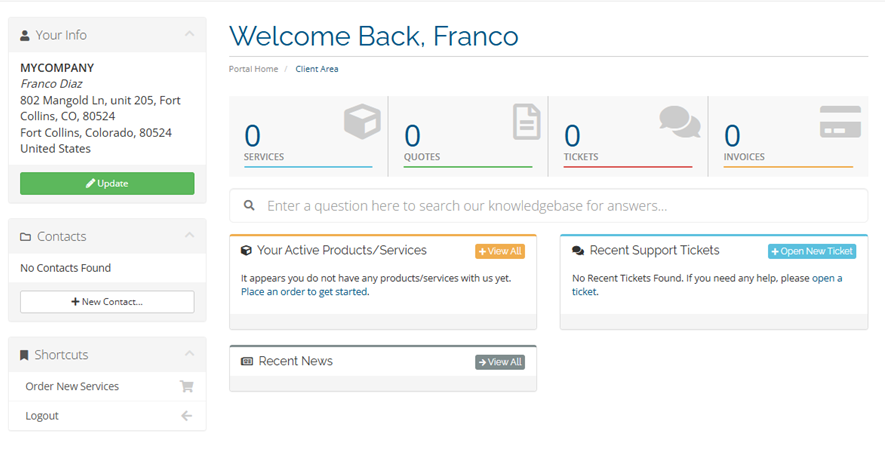
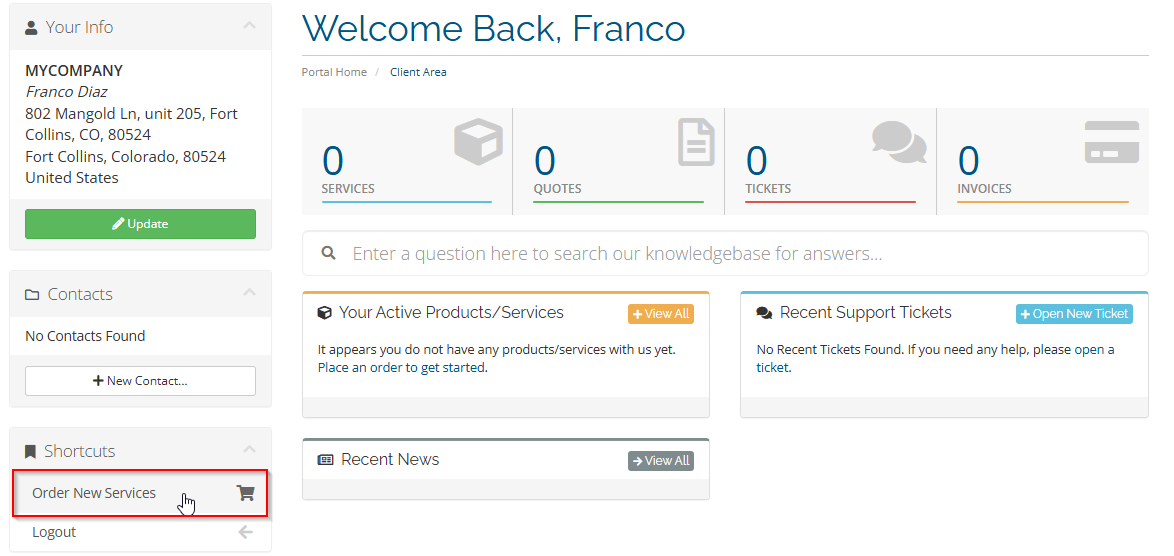
Click “Order New Services”.
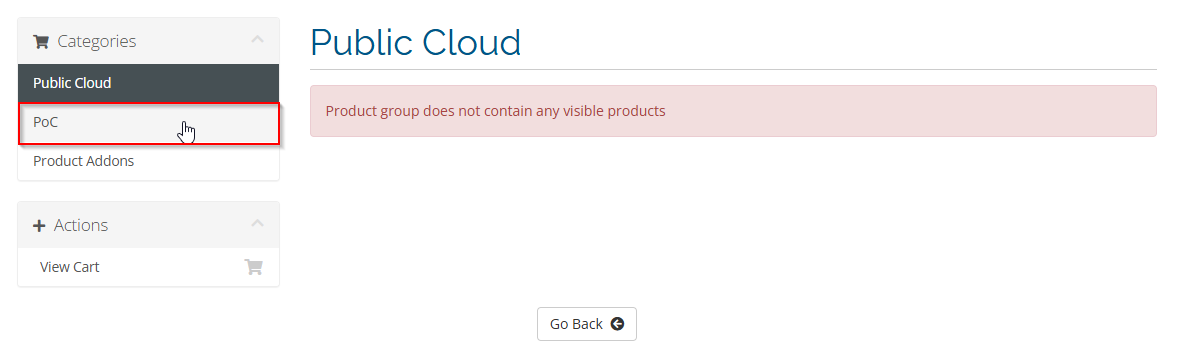
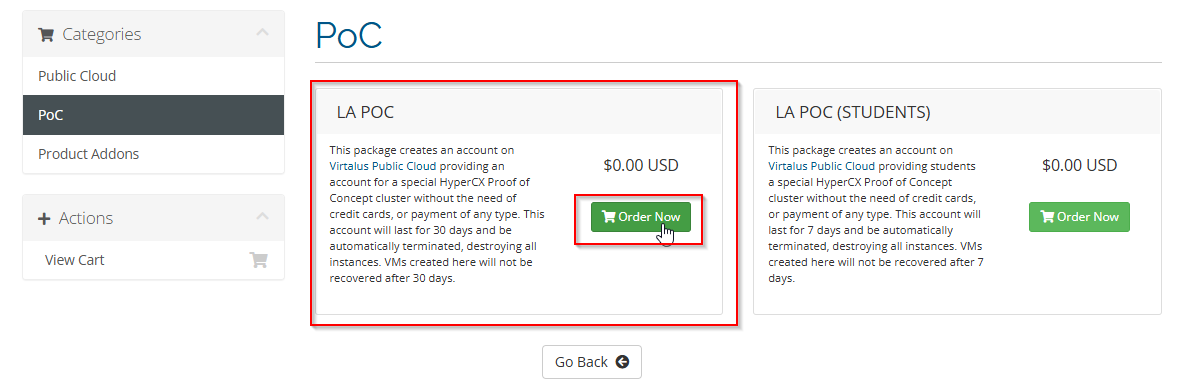
Submit the service order.
Specify the password that will be used for the account created by this service (it does not need to be the same as your User Portal account).
Confirm the service request to proceed.
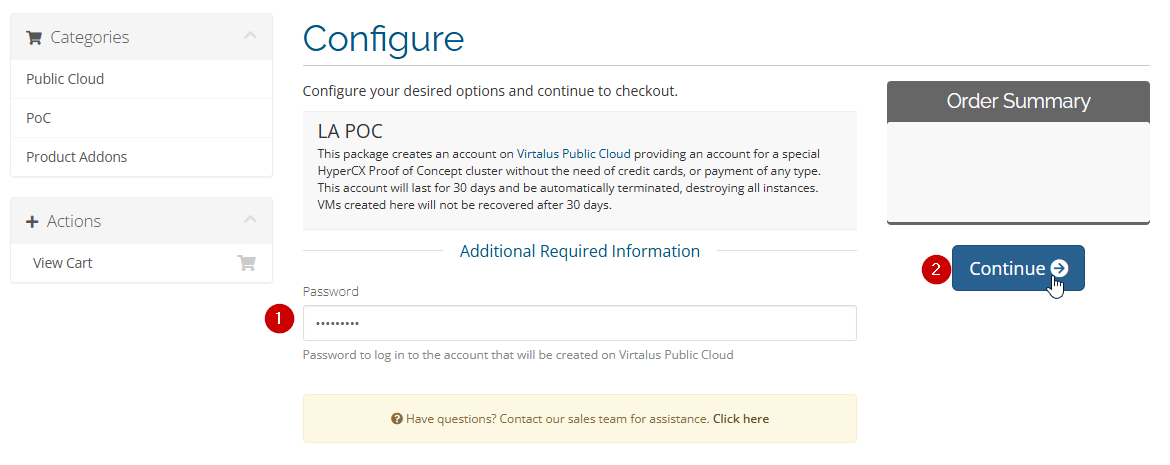
Complete the order.

Proceed to your account’s products.

You’ll notice there’s an active service.

Click “Active” to access the active service.

Click the service link.

You’ll be redirected to the Virtalus PoC Cloud frontend for HyperCX:

Finally, you can use your HyperCX cloud account for PoC.