Sunstone Authentication
By default, Sunstone works with the default core authentication method (user and password) although you can configure any authentication mechanism supported by HyperCX. In this section, you will learn about other supported authentication mechanisms.
- Authentication is based on the credentials stored in the HyperCX database for the user.
The following sections explain Sunstone server authentication methods to the user.
Basic Auth
In the basic mode, username and password are matched to those in HyperCX database in order to authorize the user at the time of login. JWT-based sessions are then used to authenticate and authorize the requests.
LDAP/AD Auth
This method performs the HyperCX login by delegating the authentication on a specific LDAP/AD server or several servers.
No special configuration is needed in Sunstone. This needs to be set up in the HyperCX core side. Requisites for ldap configuration on this guide needs to be followed. This configurations rely on Virtalus Cloud Engineers and the administrators of the LDAP server.
Two Factor Authentication
You can get an additional authentication level by using a two-factor authentication that not only requests the username and password but also the one-time (or pre-generated security) keys generated by an authenticator application.
Authenticator App
This method requires a token generated by any of these applications: Google Authentication, Authy, or Microsoft Authentication.
To enable this, you should follow these steps:
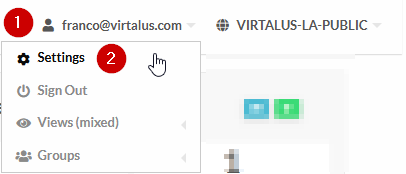
- Log in to Sunstone and manage your account Settings.
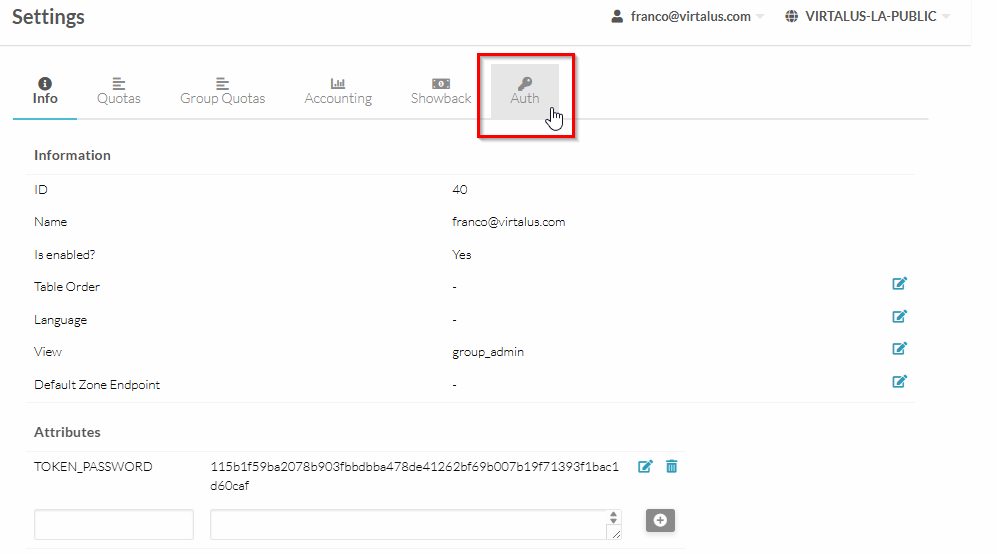
- Go to Auth section.
- Inside, find the section Two Factor Authentication.
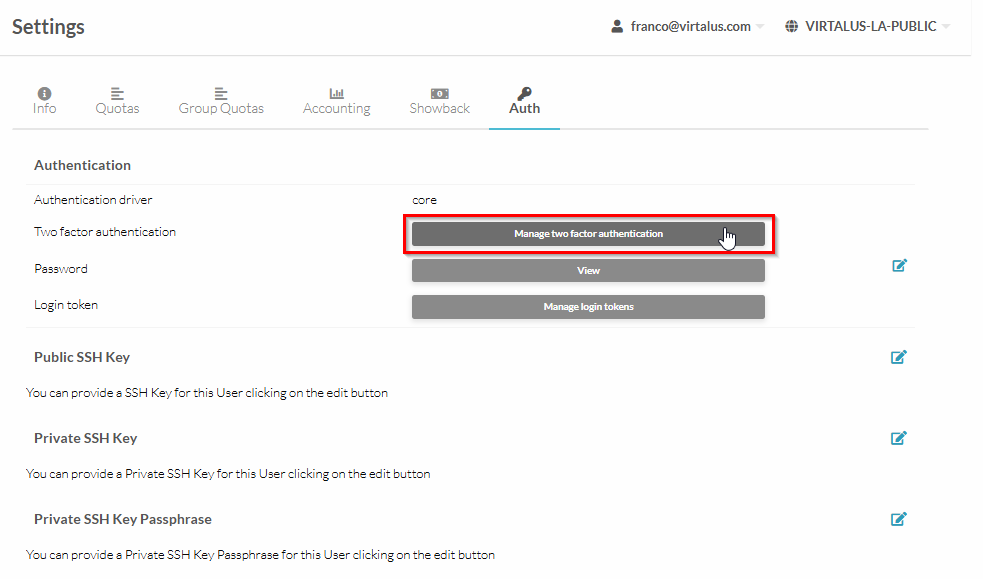
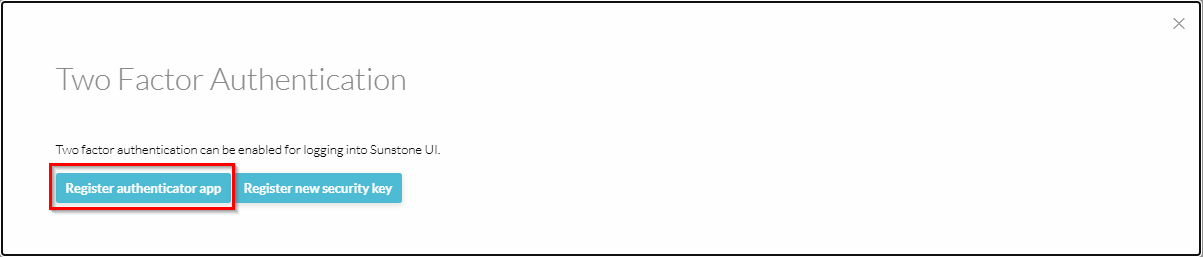
- In this section, find and select the button Register authenticator app.
- Scan the Qr code with the aforementioned apps and enter the verification code.
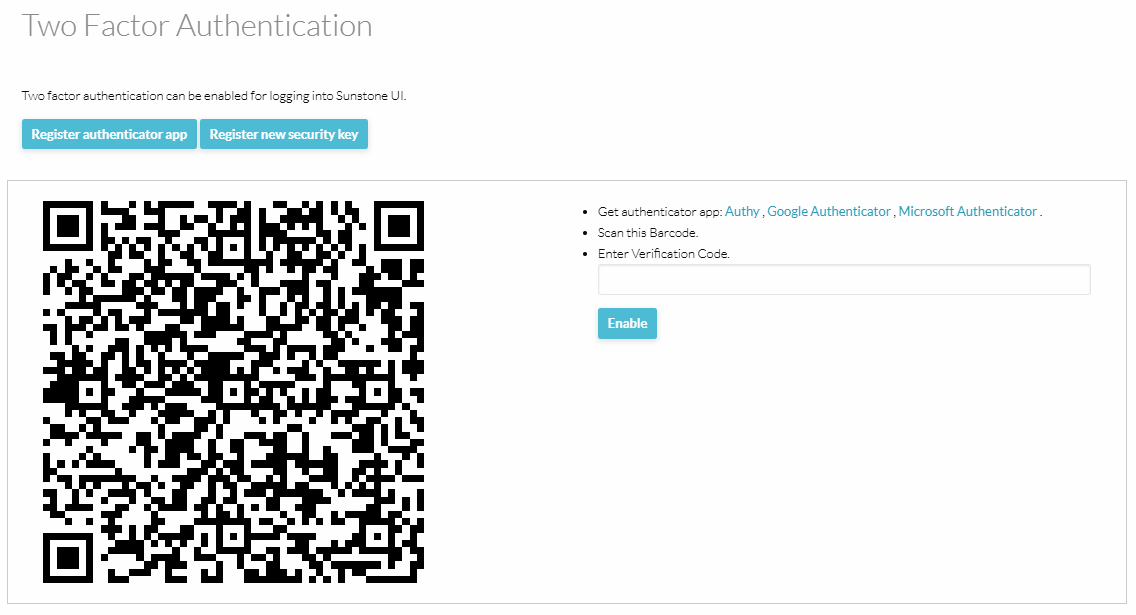
Internally Sunstone adds a field for the 2FA Secret Key.
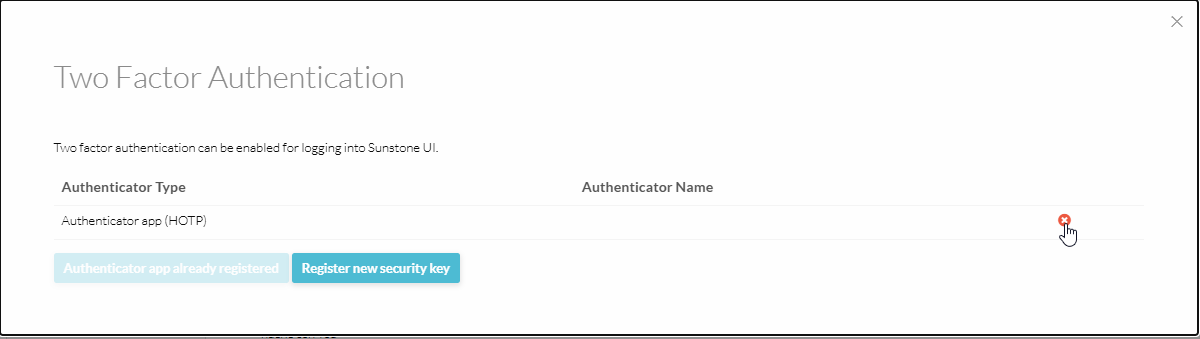
- To disable 2FA, go to the Settings, find the section Two Factor Authentication and click the Remove button.
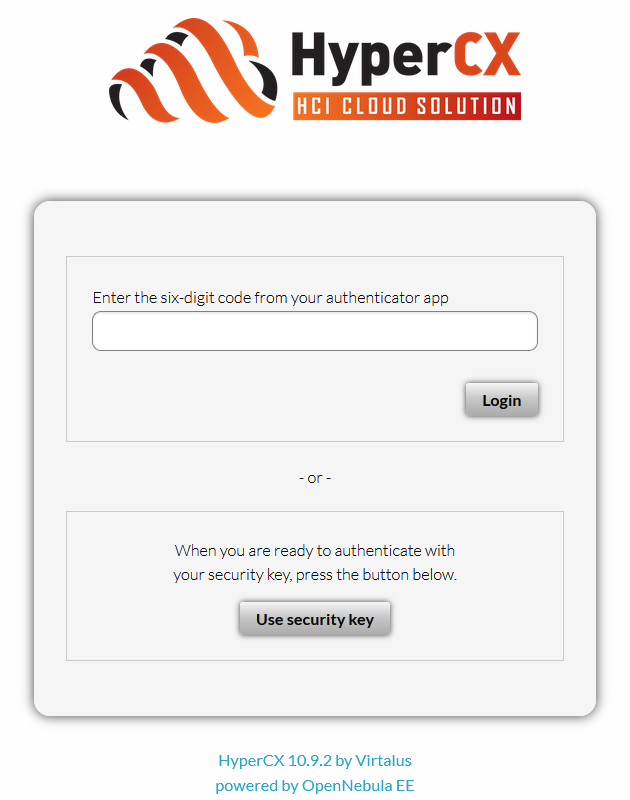
After enabling 2FA, each time a user logs in to the HyperCX Frontend (Sunstone), they will first authenticate with their username and password. Once authentication succeeds, a second prompt will appear requesting the 2FA security code for that account.
Access tokens
To improve the system security in HyperCX user can use authentication tokens. In this way there is no need to store plain passwords. Furthermore, if the user belongs to multiple groups, a token can be associated to one of those groups, and when the user operates with that token he will be effectively in that group, i.e. he will only see the resources that belong to that group, and when creating a resource it will be placed in that group.
Creating Tokens
To create a token for group user:
- Login to Portal.
- Click Username.
- Go to Setting.
- Then Select Auth section.
- Click Manage login tokens.
- Adjust Expiration for token.
- Select user group.
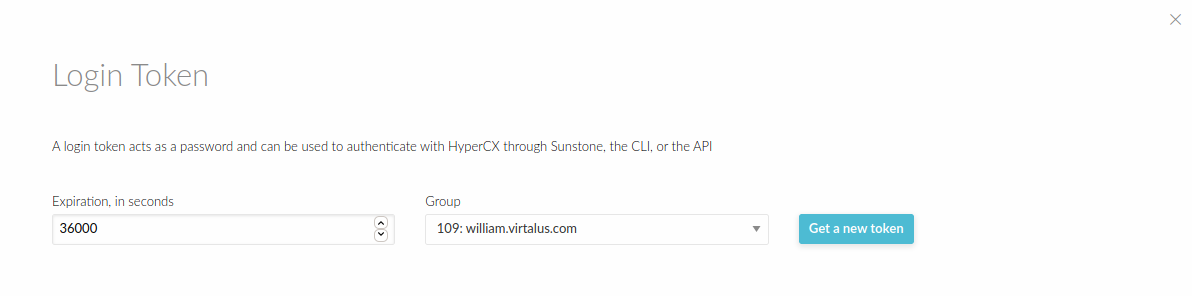
- Click button get a new token.
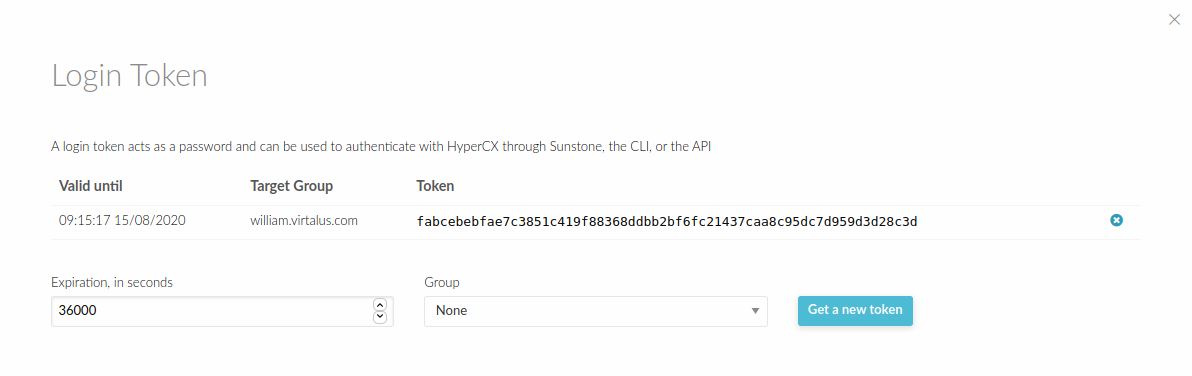
Now you can login through portal using the token that you have generated. The expiration time of the token is by default 10h (36000 seconds).The token can be created associated with one of the group the user belongs to. If the user logins with that token, he will be effectively only in that group, and will only be allowed to see the resources that belong to that group, as opposed to the default token, which allows access to all the resources available to the groups that the user belongs to.
Deleting a token
A token can be removed similarly, by:
- Login to Portal.
- Click Username.
- Go to Setting.
- Then Select Auth section.
- Click Manage login tokens.
- Click token delete button.
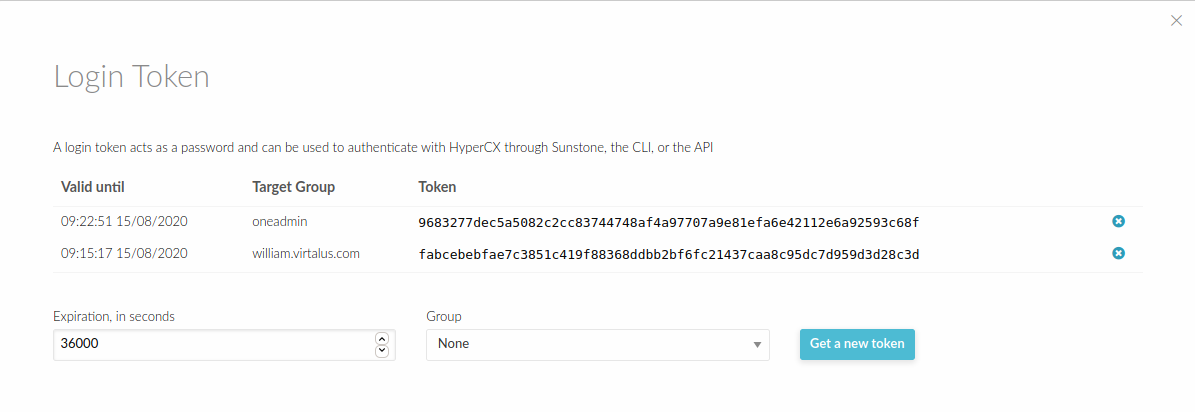
- Now you have delete the tokens.
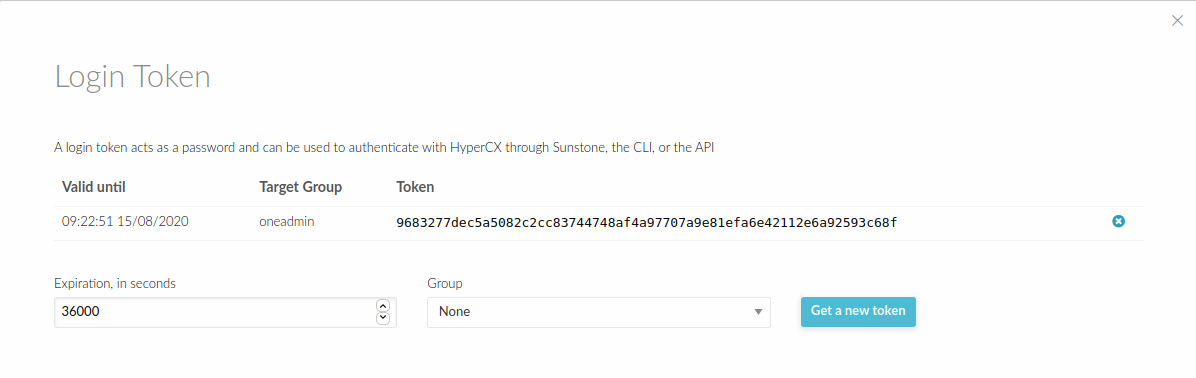
That’s how to manage a login token at HyperCX Portal.